
Wayback Machinekoobas.hobune.stream
May JUN Jul
Previous capture 13 Next capture
2021 2022 2023
1 capture
13 Jun 22 - 13 Jun 22
sparklines
Close Help
  • Products
  • Solutions
  • Made with Unity
  • Learning
  • Support & Services
  • Community
  • Asset Store
  • Get Unity

UNITY ACCOUNT

You need a Unity Account to shop in the Online and Asset Stores, participate in the Unity Community and manage your license portfolio. Login Create account
  • Blog
  • Forums
  • Answers
  • Evangelists
  • User Groups
  • Beta Program
  • Advisory Panel

Navigation

  • Home
  • Products
  • Solutions
  • Made with Unity
  • Learning
  • Support & Services
  • Community
    • Blog
    • Forums
    • Answers
    • Evangelists
    • User Groups
    • Beta Program
    • Advisory Panel

Unity account

You need a Unity Account to shop in the Online and Asset Stores, participate in the Unity Community and manage your license portfolio. Login Create account

Language

  • Chinese
  • Spanish
  • Japanese
  • Korean
  • Portuguese
  • Ask a question
  • Spaces
    • Default
    • Help Room
    • META
    • Moderators
    • Topics
    • Questions
    • Users
    • Badges
  • Home /
avatar image
0
Question by Clopay · Jan 09, 2013 at 06:09 AM · spritepixel

Pixel art appears...pixellated?

Hey guys,

I'm having a bit of an odd problem. I've got a sprite sheet that I've imported into Unity with dimensions of 32 x 160. For some reason, no matter what I do, it appears pixellated, as if it's too small for Unity to handle. I've tried unselecting Mip maps, trying every max resolution from 32 to 4096, and yes - the color is set to Truecolor and filter mode is point. The material is set to transparent - diffuse, though I've tried a couple of different types. Nothing!

What's even more odd - I've got another sprite sheet with similarly small dimensions (228 x 256). It's a tad bigger because there are more animations, but the character's size in relation to pixel size is the same. This texture was created in RagePixel, but I did a side-by-side comparison by utilizing only the .PNG that Ragepixel creates and it works perfectly! Am I missing something here?

I've included a picture of what the character should look like, and how Unity interprets it. Any advice or wisdom is greatly appreciated.
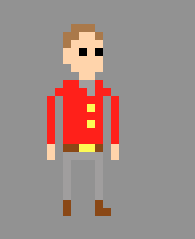
alt text

alt text

Thanks in advance! -Clopay

screen shot 2013-01-08 at 9.41.55 pm.png (18.0 kB)
screen shot 2013-01-08 at 9.42.14 pm.png (7.0 kB)
Comment
Add comment · Show 5
10 |3000 characters needed characters left characters exceeded
▼
  • Viewable by all users
  • Viewable by moderators
  • Viewable by moderators and the original poster
  • Advanced visibility
Viewable by all users
avatar image whydoidoit · Jan 09, 2013 at 06:13 AM 0
Share

You really need your textures to be in Power of 2 sizes (both dimensions) then these effects should vanish.

avatar image Clopay · Jan 09, 2013 at 06:21 AM 0
Share

Thanks for the response, whydoidoit! Are you positive about that? I've had prior experiences where my sprite sheets weren't anywhere near power of 2 sizes, (including the second sprite sheet I make mention of) and have worked fine. I'll try it out, but I feel it may be another problem.

avatar image whydoidoit · Jan 09, 2013 at 06:25 AM 0
Share

Well there's an option to specify a texture doesn't have a power of 2 size - but it's not a good idea to use it for performance reasons. The texture will be stretched to the nearest power of 2 size (and possibly made square) - if you click on your texture in the project view in Unity what size does it say it has?

avatar image Clopay · Jan 09, 2013 at 06:29 AM 0
Share

You're right - it does say 32x128, which means it's been squashed from its original size. That's odd, as I've never had this problem before. So there's no way to import a texture and have it function properly unless it's dimensions are a power of 2? I wonder why I haven't had this happen before and it's just appearing now...

avatar image whydoidoit · Jan 09, 2013 at 06:34 AM 0
Share

You probably just didn't notice :S

It's to make the graphics card transfers snappy... That's why atlasing is so important for 2D games...

4 Replies

· Add your reply
  • Sort: 
avatar image
1

Answer by Eric5h5 · Jan 09, 2013 at 06:35 AM

Change the "Non Power of 2" setting to none.

Comment
Add comment · Show 8 · Share
10 |3000 characters needed characters left characters exceeded
▼
  • Viewable by all users
  • Viewable by moderators
  • Viewable by moderators and the original poster
  • Advanced visibility
Viewable by all users
avatar image Clopay · Jan 09, 2013 at 07:09 AM 0
Share

Eric5h5 - thanks for the advice! However, I did try that to no avail :/

avatar image Eric5h5 · Jan 09, 2013 at 07:46 AM 0
Share

Did you click "apply?" Because then it won't say 32x128 anymore.

avatar image Clopay · Jan 09, 2013 at 06:23 PM 0
Share

I did select apply, and it reverts to its original 32x160 dimension; however, it's still a bit skewed. It's a tad more visible, but there is still a gray transparent layer around the edges it seems.

avatar image Bunny83 · Jan 09, 2013 at 07:09 PM 0
Share

What texture filtering do you use? For pixel-perfect things you should use "point". Just play around with the settings. There is never a general way to do things, it depends on if your image is streched by an odd value (not a multiple of the original size) and how the texture is displayed in general. I guess it's going to be a 2D game?

avatar image Clopay · Jan 09, 2013 at 07:12 PM 0
Share

Bunny83 - it's going to be a 2.5D game with animated sprites. I've tried just about every combination of texture settings I can, and yes, the filter is set to point. What's odd is that I've imported other textures (also not power of 2 dimensions) that work just fine, no pixelation or weird grey areas. I've also tried redoing the art from scratch to see if maybe I'd accidentally drawn transparent pixels or if it was in the way the .PNG was saved, but no luck there. This is completely baffling me.

Show more comments
avatar image
0

Answer by jpsmarinho812 · Feb 15, 2014 at 05:44 PM

Try use RGBA 16bit for the image format

Comment
Add comment · Share
10 |3000 characters needed characters left characters exceeded
▼
  • Viewable by all users
  • Viewable by moderators
  • Viewable by moderators and the original poster
  • Advanced visibility
Viewable by all users
avatar image
0

Answer by MakeCodeNow · Feb 15, 2014 at 08:06 PM

The problem is that your texture filtering needs to be set to Point. Right now it's probably Bilinear, which will automatically "blur" the edges depending on the texture resolution vs screen res.

Comment
Add comment · Share
10 |3000 characters needed characters left characters exceeded
▼
  • Viewable by all users
  • Viewable by moderators
  • Viewable by moderators and the original poster
  • Advanced visibility
Viewable by all users
avatar image
0

Answer by sockman · Jun 26, 2015 at 03:44 AM

Go into an image editor and resize it there. Use something like gimp, and when resizing it set interpolation/antialiasing to 0.

Comment
Add comment · Share
10 |3000 characters needed characters left characters exceeded
▼
  • Viewable by all users
  • Viewable by moderators
  • Viewable by moderators and the original poster
  • Advanced visibility
Viewable by all users

Your answer

Hint: You can notify a user about this post by typing @username

Up to 2 attachments (including images) can be used with a maximum of 524.3 kB each and 1.0 MB total.

Follow this Question

Answers Answers and Comments

15 People are following this question.

avatar image avatar image avatar image avatar image avatar image avatar image avatar image avatar image avatar image avatar image avatar image avatar image avatar image avatar image avatar image

Related Questions

If I make a vector in Inkscape will it be a vector in unity? 1 Answer

Round position 1 Answer

Pixels per Unit / Pixel Perfect Shadows, possible? 1 Answer

How to scale a quad to has the size same as pixel size of sprite? (perspective camera) 0 Answers

Texture Quality VS (Sprite 2D and UI) Quality 1 Answer


Enterprise
Social Q&A

Social
Subscribe on YouTube social-youtube Follow on LinkedIn social-linkedin Follow on Twitter social-twitter Follow on Facebook social-facebook Follow on Instagram social-instagram

Footer

  • Purchase
    • Products
    • Subscription
    • Asset Store
    • Unity Gear
    • Resellers
  • Education
    • Students
    • Educators
    • Certification
    • Learn
    • Center of Excellence
  • Download
    • Unity
    • Beta Program
  • Unity Labs
    • Labs
    • Publications
  • Resources
    • Learn platform
    • Community
    • Documentation
    • Unity QA
    • FAQ
    • Services Status
    • Connect
  • About Unity
    • About Us
    • Blog
    • Events
    • Careers
    • Contact
    • Press
    • Partners
    • Affiliates
    • Security
Copyright © 2020 Unity Technologies
  • Legal
  • Privacy Policy
  • Cookies
  • Do Not Sell My Personal Information
  • Cookies Settings
"Unity", Unity logos, and other Unity trademarks are trademarks or registered trademarks of Unity Technologies or its affiliates in the U.S. and elsewhere (more info here). Other names or brands are trademarks of their respective owners.
  • Anonymous
  • Sign in
  • Create
  • Ask a question
  • Spaces
  • Default
  • Help Room
  • META
  • Moderators
  • Explore
  • Topics
  • Questions
  • Users
  • Badges
