Wayback Machinekoobas.hobune.stream
May JUN Jul
Previous capture 13 Next capture
2021 2022 2023
1 capture
13 Jun 22 - 13 Jun 22
sparklines
Close Help
  • Products
  • Solutions
  • Made with Unity
  • Learning
  • Support & Services
  • Community
  • Asset Store
  • Get Unity

UNITY ACCOUNT

You need a Unity Account to shop in the Online and Asset Stores, participate in the Unity Community and manage your license portfolio. Login Create account
  • Blog
  • Forums
  • Answers
  • Evangelists
  • User Groups
  • Beta Program
  • Advisory Panel

Navigation

  • Home
  • Products
  • Solutions
  • Made with Unity
  • Learning
  • Support & Services
  • Community
    • Blog
    • Forums
    • Answers
    • Evangelists
    • User Groups
    • Beta Program
    • Advisory Panel

Unity account

You need a Unity Account to shop in the Online and Asset Stores, participate in the Unity Community and manage your license portfolio. Login Create account

Language

  • Chinese
  • Spanish
  • Japanese
  • Korean
  • Portuguese
  • Ask a question
  • Spaces
    • Default
    • Help Room
    • META
    • Moderators
    • Topics
    • Questions
    • Users
    • Badges
  • Home /
This post has been wikified, any user with enough reputation can edit it.
avatar image
0
Question by petermsmith · Nov 12, 2013 at 08:44 PM · shadertransparencyantialias

Weird antialiasing on textures - 2D

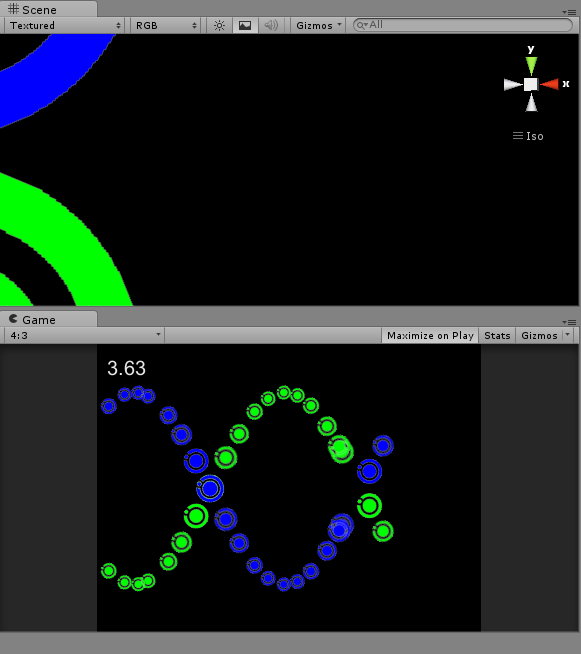
Hi there--I'm working on making a simple 2D game with some flat-colored textures applied to quads. They're supposed to be cleanly layered on top of a simple black background, but they're developing some weird gray cruft around the edges, in a way that doesn't look nearly as sharp as one might hope. (In the screen below, you can see it especially in places where two "particles" overlap--but it's also present zoomed way in in the scene view, albeit less noticeable.) I'm using the Unlit/Transparent shader, and the images are 256X256 PNG files without any antialiasing. Do they just need to be higher res? Is there something I should tweak in the shader?
alt text

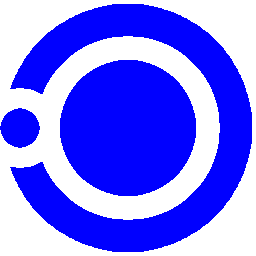
Here's the PNG file itself:

alt text

Any advice is much appreciated--thanks!

outline.png (57.9 kB)
blue particle.png (3.0 kB)
Comment
Add comment
10 |3000 characters needed characters left characters exceeded
▼
  • Viewable by all users
  • Viewable by moderators
  • Viewable by moderators and the original poster
  • Advanced visibility
Viewable by all users

1 Reply

· Add your reply
  • Sort: 
avatar image
2
Best Answer

Answer by Dracorat · Nov 12, 2013 at 09:22 PM

They're being antialiased. They're also actually not gray pixels, they're blended pixels between blue and black - but appear gray because of how our eyes work. I could super-zoom your image to show it to you, but you can do that too. (Windows + U provides a handy magnifier for just this purpose!)

Here are the common steps you'd take to tell Unity not to antialias your texture:

  • 1) Set the filter mode to "Point"

  • 2) Set the wrap mode to clamp

  • 3) Set the texture type to "Advanced"

  • 4) Uncheck "Generate Mipmaps"

After that, your texture will be scaled only on pixels and not interpolated between pixels. You may also have to turn off antialiasing also in the project settings under the "Quality Settings" section. I'd only do this if the first few steps didn't completely resolve the antialiasing artifacts.

Comment
Add comment · Show 1 · Share
10 |3000 characters needed characters left characters exceeded
▼
  • Viewable by all users
  • Viewable by moderators
  • Viewable by moderators and the original poster
  • Advanced visibility
Viewable by all users
avatar image petermsmith · Nov 13, 2013 at 01:44 AM 1
Share

That did indeed solve the problem. Thanks so much!

Your answer

Hint: You can notify a user about this post by typing @username

Up to 2 attachments (including images) can be used with a maximum of 524.3 kB each and 1.0 MB total.

Follow this Question

Answers Answers and Comments

17 People are following this question.

avatar image avatar image avatar image avatar image avatar image avatar image avatar image avatar image avatar image avatar image avatar image avatar image avatar image avatar image avatar image avatar image avatar image

Related Questions

An Outline like the Editor does in game, with transparency 1 Answer

Is it possible to create a blur effect based on the alpha of a transparent texture on a plane? 0 Answers

Add Color Property to Unlit Alpha? 1 Answer

Wrong weighted order transparencry 0 Answers

Transparency and texture atlases, shader calls affecting performance? 2 Answers


Enterprise
Social Q&A

Social
Subscribe on YouTube social-youtube Follow on LinkedIn social-linkedin Follow on Twitter social-twitter Follow on Facebook social-facebook Follow on Instagram social-instagram

Footer

  • Purchase
    • Products
    • Subscription
    • Asset Store
    • Unity Gear
    • Resellers
  • Education
    • Students
    • Educators
    • Certification
    • Learn
    • Center of Excellence
  • Download
    • Unity
    • Beta Program
  • Unity Labs
    • Labs
    • Publications
  • Resources
    • Learn platform
    • Community
    • Documentation
    • Unity QA
    • FAQ
    • Services Status
    • Connect
  • About Unity
    • About Us
    • Blog
    • Events
    • Careers
    • Contact
    • Press
    • Partners
    • Affiliates
    • Security
Copyright © 2020 Unity Technologies
  • Legal
  • Privacy Policy
  • Cookies
  • Do Not Sell My Personal Information
  • Cookies Settings
"Unity", Unity logos, and other Unity trademarks are trademarks or registered trademarks of Unity Technologies or its affiliates in the U.S. and elsewhere (more info here). Other names or brands are trademarks of their respective owners.
  • Anonymous
  • Sign in
  • Create
  • Ask a question
  • Spaces
  • Default
  • Help Room
  • META
  • Moderators
  • Explore
  • Topics
  • Questions
  • Users
  • Badges