
Wayback Machinekoobas.hobune.stream
May JUN Jul
Previous capture 12 Next capture
2021 2022 2023
1 capture
12 Jun 22 - 12 Jun 22
sparklines
Close Help
  • Products
  • Solutions
  • Made with Unity
  • Learning
  • Support & Services
  • Community
  • Asset Store
  • Get Unity

UNITY ACCOUNT

You need a Unity Account to shop in the Online and Asset Stores, participate in the Unity Community and manage your license portfolio. Login Create account
  • Blog
  • Forums
  • Answers
  • Evangelists
  • User Groups
  • Beta Program
  • Advisory Panel

Navigation

  • Home
  • Products
  • Solutions
  • Made with Unity
  • Learning
  • Support & Services
  • Community
    • Blog
    • Forums
    • Answers
    • Evangelists
    • User Groups
    • Beta Program
    • Advisory Panel

Unity account

You need a Unity Account to shop in the Online and Asset Stores, participate in the Unity Community and manage your license portfolio. Login Create account

Language

  • Chinese
  • Spanish
  • Japanese
  • Korean
  • Portuguese
  • Ask a question
  • Spaces
    • Default
    • Help Room
    • META
    • Moderators
    • Topics
    • Questions
    • Users
    • Badges
  • Home /
avatar image
0
Question by benjaminoutram · Jan 28, 2016 at 06:09 AM · particlestexturesformatalpha-channel

What is the difference between these two textures that they have different options and render properties?

I have two textures. One called sphereShape.psd (which can be found in Unity Standard Assets => Effects => ImageEffects => Textures), and another called benShape.psd which I made using Gimp. Both textures are in RGB mode with no alpha channel.

When I view them in the inspector in Unity however, they seem to have different options, as you can see in the screenshot below. sphereShape has Alpha is Transparency as well as from Greyscale options.
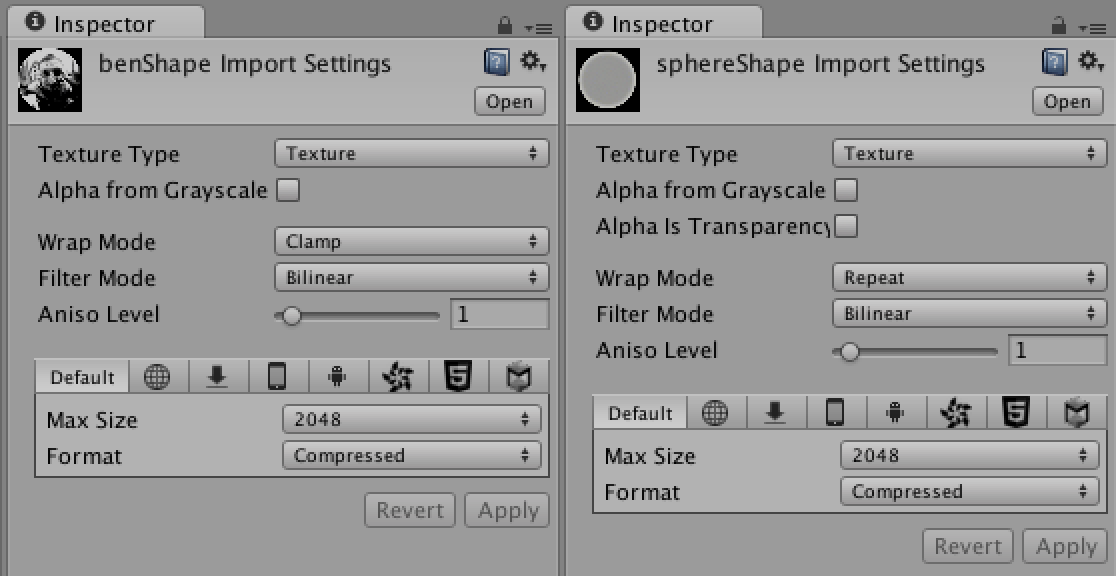
alt text

The textures are assigned to materials, both with the shader "Particles/Alpha Blended Premultiply", and these materials are assigned to a particle system renderer. The tint colour has been controlled with particles.color.

However, as you can see in the following screens, the particles render completely differently. The Sphere particle has this amazing halo effect with a dark centre, and its black background has become transparent, while the benShape particle retains its black background and has no transparent effects at all.
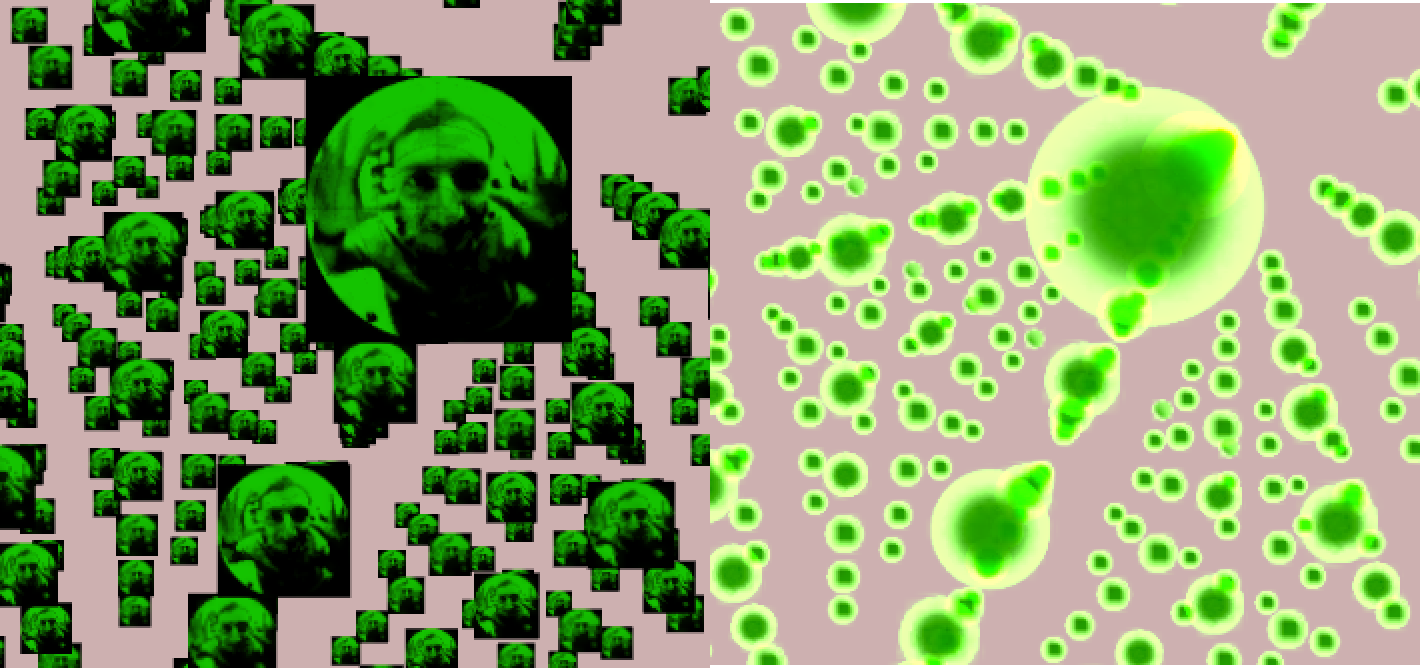
alt text

As far as I can tell, all the settings and file-types for the two textures are the same, but I am clearly missing something as the textures render completely differently and have different options showing in the inspector. What am I missing?

I would like to know because I would like to design my own textures that have these nice effects that the sphereShape texture has.

After searching around I have not been able to come up with answers.

screen-shot-2016-01-28-at-144455.png (80.7 kB)
texturecompareimage.png (299.4 kB)
Comment
Add comment · Show 1
10 |3000 characters needed characters left characters exceeded
▼
  • Viewable by all users
  • Viewable by moderators
  • Viewable by moderators and the original poster
  • Advanced visibility
Viewable by all users
avatar image benjaminoutram · Jan 28, 2016 at 06:10 AM 0
Share

I noticed the clamp and repeat mode are different between the textures but this does not change anything.

1 Reply

· Add your reply
  • Sort: 
avatar image
0

Answer by skwsk8 · Jul 09, 2016 at 08:07 AM

@benjaminoutram Not sure if you figured this out yet or not, but posting here in case others run into the issue, as I ran into this today too, using Gimp, and finally figured it out. Not sure what's causing the issue, but the png file still had white areas where it was supposed to be transparent. I've done this several times before, so I'm not sure what happened, but here's the workaround:

  1. Open the png in ms Paint, make a change, undo, and save.

  2. Then re-open the png in Gimp. The transparent areas will be white again, so from the menu, do: Layer > Transparency > Color to Alpha > (White "to alpha") > Ok

  3. Then, File > Export As... > YourPic.png as file type PNG > Save/Export

  4. Delete the existing png/texture from Unity and hit Apply/OK when the pop up appears

  5. Import/drag the new png into Unity

  6. Drag the png from Unity onto your material

That worked for me. Hope it helps!

Comment
Add comment · Share
10 |3000 characters needed characters left characters exceeded
▼
  • Viewable by all users
  • Viewable by moderators
  • Viewable by moderators and the original poster
  • Advanced visibility
Viewable by all users

Your answer

Hint: You can notify a user about this post by typing @username

Up to 2 attachments (including images) can be used with a maximum of 524.3 kB each and 1.0 MB total.

Follow this Question

Answers Answers and Comments

35 People are following this question.

avatar image avatar image avatar image avatar image avatar image avatar image avatar image avatar image avatar image avatar image avatar image avatar image avatar image avatar image avatar image avatar image avatar image avatar image avatar image avatar image avatar image avatar image avatar image avatar image avatar image avatar image avatar image avatar image avatar image avatar image avatar image avatar image avatar image avatar image avatar image

Related Questions

Dark particles 4 Answers

Saving to the right texture format for procedural texture fetch 2 Answers

Import Texture with good quality... 2 Answers

How to make a default particle's texture? 1 Answer

Particle textures, black or transparent background? 1 Answer


Enterprise
Social Q&A

Social
Subscribe on YouTube social-youtube Follow on LinkedIn social-linkedin Follow on Twitter social-twitter Follow on Facebook social-facebook Follow on Instagram social-instagram

Footer

  • Purchase
    • Products
    • Subscription
    • Asset Store
    • Unity Gear
    • Resellers
  • Education
    • Students
    • Educators
    • Certification
    • Learn
    • Center of Excellence
  • Download
    • Unity
    • Beta Program
  • Unity Labs
    • Labs
    • Publications
  • Resources
    • Learn platform
    • Community
    • Documentation
    • Unity QA
    • FAQ
    • Services Status
    • Connect
  • About Unity
    • About Us
    • Blog
    • Events
    • Careers
    • Contact
    • Press
    • Partners
    • Affiliates
    • Security
Copyright © 2020 Unity Technologies
  • Legal
  • Privacy Policy
  • Cookies
  • Do Not Sell My Personal Information
  • Cookies Settings
"Unity", Unity logos, and other Unity trademarks are trademarks or registered trademarks of Unity Technologies or its affiliates in the U.S. and elsewhere (more info here). Other names or brands are trademarks of their respective owners.
  • Anonymous
  • Sign in
  • Create
  • Ask a question
  • Spaces
  • Default
  • Help Room
  • META
  • Moderators
  • Explore
  • Topics
  • Questions
  • Users
  • Badges
