 koobas.hobune.stream


Normal maps banding.
I am curious what the official work around is to the banding in normal maps. This banding is especially visible on very reflective surfaces. while abrupt and simple angles like paneling grooves or nicks look fine, the smoother more gradual areas suffer some harsh banding. my "normal" solutions would be to dither or use 16bit png(even though pngs are the devil) as the normal map but it seems that unity or the standard shader at least doesn't play nice with 16bit. 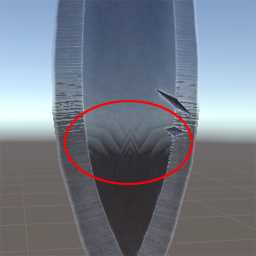
just to show specifically whats going on here is an example of the problem. The area of the normal map that corresponds to the circled area has a very gradual slope. This is where some of the banding occurs.
i do hope there is just some import setting or something that i have been missing. thank you in advance for any info or help. -j

anyone else see this behavior with normal maps and or have a fix?

I've only noticed this when I went back to a model to fix problems and the UVs got deformed. Perhaps attempt to remap the object's UVs?
thanks for the reply :) sadly this was directly after an export and map generation and i am reasonably sure that nothing has altered the mesh or normal map other than unity's import processing . I have tried all of the variations of the import setting i can think of that would apply for both the mesh and the texture to no avail.
its frustrating that the banding is not present in substance or in max but is in unity. now the comparison to substance might be unfair since it internally uses higher bit depth textures, but if max can do it should not unity be able to? this also brings up that a higher bit depth normal map does not seem to improve the banding in unity. this leads me to believe that either unity is down sampling the higher bit depth or some other factor is at the root of the banding.
It's a bit curious the banding starts around the area of the second nick on the blade, but the first is fine. It might be errant extra geometry in that area? Could try moving edges to make sure there aren't any hidden faces going on. I've spent the last couple weeks cleaning up a model for use in a project and I'm a programmer, not a modeler, ;)
its hard to see but the banding is actually the entire length of the flat of the blade,but you really only see it at or near the specular highlights. i picked this spot for the screenshot just because its the area the most banding occurs and the wonder woman-esque pattern is very easy to read.
both the source mesh and the low poly mesh are very clean geometry wise (did a once over just now to be sure). no hidden faces or stacked uvws or wonky smoothing groups that i can find.
-j
i have just resigned myself to using photoshop to do the conversions from 16bit format to 8bit format. Nothing crazy $$anonymous$$d you just opening up the 16bit tif or png then Image>$$anonymous$$ode>8bit and save as a tga or png. doing this produces much subtler banding. if unity insists on "8 biting" everything it would be nice if it did it at least as well as photoshop does it.
now having said that i would still like to know what process the unity Dev's expect users to undertake to get normal maps with no banding :). oh and how to get 16bit images into the editor without getting crushed. -j


