
Wayback Machinekoobas.hobune.stream
May JUN Jul
Previous capture 12 Next capture
2021 2022 2023
1 capture
12 Jun 22 - 12 Jun 22
sparklines
Close Help
  • Products
  • Solutions
  • Made with Unity
  • Learning
  • Support & Services
  • Community
  • Asset Store
  • Get Unity

UNITY ACCOUNT

You need a Unity Account to shop in the Online and Asset Stores, participate in the Unity Community and manage your license portfolio. Login Create account
  • Blog
  • Forums
  • Answers
  • Evangelists
  • User Groups
  • Beta Program
  • Advisory Panel

Navigation

  • Home
  • Products
  • Solutions
  • Made with Unity
  • Learning
  • Support & Services
  • Community
    • Blog
    • Forums
    • Answers
    • Evangelists
    • User Groups
    • Beta Program
    • Advisory Panel

Unity account

You need a Unity Account to shop in the Online and Asset Stores, participate in the Unity Community and manage your license portfolio. Login Create account

Language

  • Chinese
  • Spanish
  • Japanese
  • Korean
  • Portuguese
  • Ask a question
  • Spaces
    • Default
    • Help Room
    • META
    • Moderators
    • Topics
    • Questions
    • Users
    • Badges
  • Home /
avatar image
0
Question by TFgamesOG · Jun 05, 2018 at 04:20 PM · animatorimportblenderanimationsroot motion

Apply root motion to bones which are not children of the root motion node

Hello!

I'm having a character rig which contains a weapon. We animate the weapon within Blender. Now we wanna apply root motion. The problem is that it seems like the root motion node must also be the root of all moving bones.

We didn't set the weapon's parent to the root motion node because we thought the weapon is a separate object and not related to the character itself. Also, it's actually not possible to make the weapon a child of the root motion node because then we get Dependency-Cycles in Blender and the animations aren't exported reliably anymore.

In Unity it seems like root motion isn't applied to the weapon. The weapon is always ahead of the character and jumps back to its original position when the animation restarts.
Is there a way to apply root motion for bones which are not children of the root motion node?
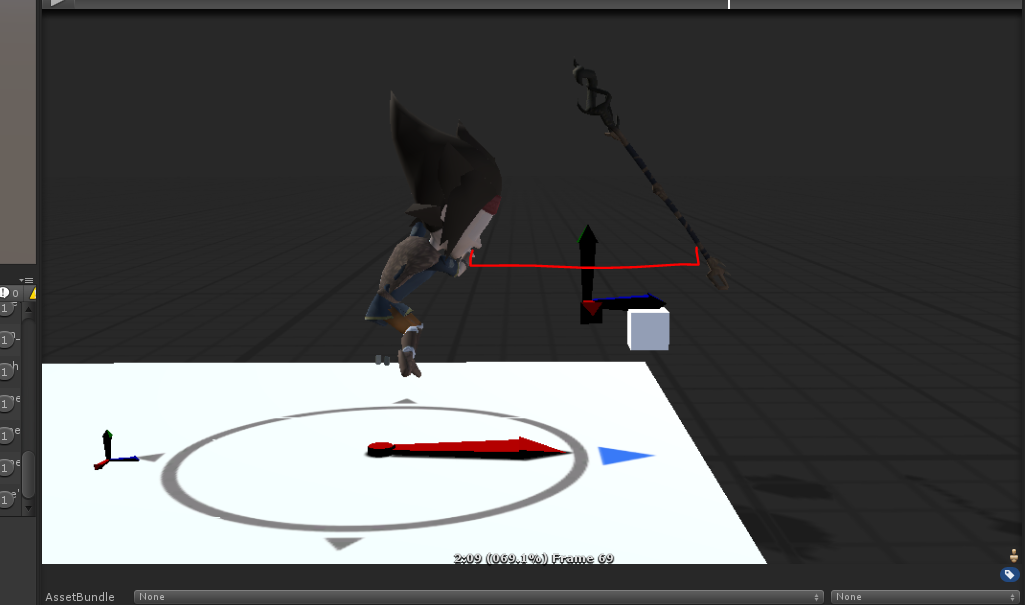
Weapon is ahead of the character when using root motion

root-motion-weapon.png (149.1 kB)
Comment
Add comment
10 |3000 characters needed characters left characters exceeded
▼
  • Viewable by all users
  • Viewable by moderators
  • Viewable by moderators and the original poster
  • Advanced visibility
Viewable by all users

1 Reply

· Add your reply
  • Sort: 
avatar image
1

Answer by Pinkuboxu · Jun 07, 2018 at 08:00 PM

You are going about it a bit wrong, I think. While the weapon object is a separate object in one way, you should think of your character as containing the weapon object in their hand when it's equipped, therefor in a certain way it's a part of the character. It seems less counter intuitive if you pretend the hand is a container for the weapon. You may want to do it in Unity. Give your character an Empty Object as a weapon slot, positioned and a child at the characters hand transform inside of their armature. Then either place the weapon prefab on that transform manually or have a script that swaps out different weapons. So more directly answering, no, the root motion should always just be for one object and it's children. It's not necessary or advisable to try and move something that isn't part of a root bone family with root motion.


Another way you can do this, If you want to do it more in Blender, you just give the weapon the same armature modifier rig as the characters body rig and make the weapon parent the armature. You can then set the weight of the weapon to the hand bone of the armature. This way the object will be a separate object, at least from the mesh, but it will move with the hand bone. On import to unity it will show up under the same prefab next to the character, but since the animator is on the main component of the prefab, it will move all of the attached objects properly. This way you just apply root motion as usual and everything moves together. You can turn the weapon on and off by activating or deactivating it, repeat these steps for more weapons if needed, and just keep all of your weapons in the same .blend file with your character. You can export in any way that you find a good workflow with. It is also how you'd do different hair, clothing options, accessories, etc.

Comment
Add comment · Share
10 |3000 characters needed characters left characters exceeded
▼
  • Viewable by all users
  • Viewable by moderators
  • Viewable by moderators and the original poster
  • Advanced visibility
Viewable by all users

Your answer

Hint: You can notify a user about this post by typing @username

Up to 2 attachments (including images) can be used with a maximum of 524.3 kB each and 1.0 MB total.

Follow this Question

Answers Answers and Comments

118 People are following this question.

avatar image avatar image avatar image avatar image avatar image avatar image avatar image avatar image avatar image avatar image avatar image avatar image avatar image avatar image avatar image avatar image avatar image avatar image avatar image avatar image avatar image avatar image avatar image avatar image avatar image avatar image avatar image avatar image avatar image avatar image avatar image avatar image avatar image avatar image avatar image avatar image avatar image avatar image avatar image avatar image avatar image avatar image avatar image avatar image avatar image avatar image avatar image avatar image avatar image avatar image avatar image avatar image avatar image avatar image avatar image avatar image avatar image avatar image avatar image avatar image avatar image avatar image avatar image avatar image avatar image avatar image avatar image avatar image avatar image avatar image avatar image avatar image avatar image avatar image avatar image avatar image avatar image avatar image avatar image avatar image avatar image avatar image avatar image avatar image avatar image avatar image avatar image avatar image avatar image avatar image avatar image avatar image avatar image avatar image avatar image avatar image avatar image avatar image avatar image avatar image avatar image avatar image avatar image avatar image avatar image avatar image avatar image avatar image avatar image avatar image avatar image avatar image avatar image avatar image avatar image avatar image avatar image avatar image

Related Questions

Mecanim x and z plane root motion not working when importing .fbx, but works with .blend 2 Answers

Rig object offsets during animations 0 Answers

Importing Blender Animations to be played in-game 3 Answers

Blender to Unity - which export format is best? 3 Answers

Adding new Animation to existing Animator not working correctly 0 Answers


Enterprise
Social Q&A

Social
Subscribe on YouTube social-youtube Follow on LinkedIn social-linkedin Follow on Twitter social-twitter Follow on Facebook social-facebook Follow on Instagram social-instagram

Footer

  • Purchase
    • Products
    • Subscription
    • Asset Store
    • Unity Gear
    • Resellers
  • Education
    • Students
    • Educators
    • Certification
    • Learn
    • Center of Excellence
  • Download
    • Unity
    • Beta Program
  • Unity Labs
    • Labs
    • Publications
  • Resources
    • Learn platform
    • Community
    • Documentation
    • Unity QA
    • FAQ
    • Services Status
    • Connect
  • About Unity
    • About Us
    • Blog
    • Events
    • Careers
    • Contact
    • Press
    • Partners
    • Affiliates
    • Security
Copyright © 2020 Unity Technologies
  • Legal
  • Privacy Policy
  • Cookies
  • Do Not Sell My Personal Information
  • Cookies Settings
"Unity", Unity logos, and other Unity trademarks are trademarks or registered trademarks of Unity Technologies or its affiliates in the U.S. and elsewhere (more info here). Other names or brands are trademarks of their respective owners.
  • Anonymous
  • Sign in
  • Create
  • Ask a question
  • Spaces
  • Default
  • Help Room
  • META
  • Moderators
  • Explore
  • Topics
  • Questions
  • Users
  • Badges
